Swipe to Delete Photos
Scrub is a photo cleaner for iPhone. Clean up your camera roll and free up storage by swiping photos, scrolling videos and sweeping away duplicates.

Scrub
Clean up your camera roll
Swipe through your photos to keep or delete them, scroll your videos in a full screen feed, and let Sweep find duplicates, similar shots and screenshots. Nothing is deleted until you confirm, and deleting always goes through Apple's own check.


Three Ways to Clean
Photos, videos or the whole library. Start wherever your storage goes.
Swipe
Swipe left to delete and right to keep, one photo at a time. Start from a date, just your screenshots, or the newest, biggest, oldest or a random mix. Changed your mind? Undo.
Scroll
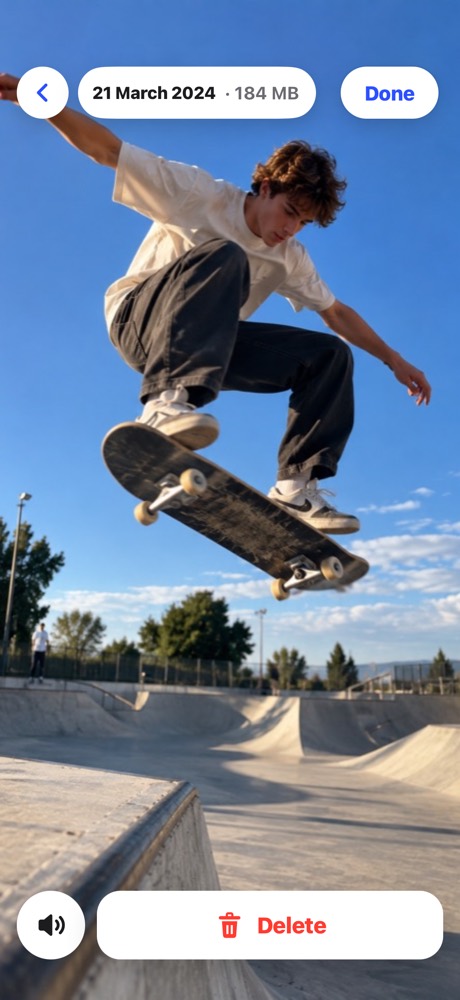
Your videos in a full screen feed, biggest first. Flick up for the next one and tap Delete to add it to your delete list. Tap again to take it off.
Sweep
Scrub checks your library and sorts what you can clear into piles, with the space each one takes. Review a pile and clear it in one go.
What Sweep Finds
Scrub sorts your library into these piles, each with the space it takes.
Duplicates
Exact copies of the same photo. One is kept.
Similar shots
Groups of near identical photos. The best one is kept.
Burst extras
The extra frames from burst mode. The best one is kept.
Screenshots
Every screenshot in one place.
Screen recordings
Old screen recordings, which add up fast.
Receipts and docs
Photos of receipts, papers and documents.
Blurry and dark
Shots that did not come out.
Big videos
Videos over 200 MB, saved as smaller HD copies.
Live Photos
Keep a still copy of each and save the space.
How to Clean Up Your iPhone Photos
From a full camera roll to free space in five steps.
Open Scrub
Let Scrub see your photo library. There is no account to make.
Pick where to start
Sweep for the piles that take the most space, Swipe for photos one by one, or Scroll for your videos, biggest first.
Mark what goes
Swipe left on a photo, tap Delete on a video, or open a Sweep pile. In Swipe, tap Undo if you change your mind.
Review and delete
Check what you marked, then confirm. Deleting always goes through Apple's own check.
Get the space back
Deleted items wait in Recently Deleted for 30 days. Empty it in the Photos app to free the space right away.
Good to Know
Nothing goes until you say so
Everything you mark goes on a list you review first. Deleting always goes through Apple's own confirmation, and deleted items wait in Recently Deleted for 30 days. With iCloud Photos on, they are removed from all your devices.
Free to try, Pro to keep going
Try every mode free: 5 photo swipes, 5 videos and 5 items in each Sweep pile. Scrub Pro unlocks unlimited cleaning, as a one time Lifetime purchase or Monthly with a 7 day free trial for new subscribers.
Private by design
Scrub sorts your photos and videos on your iPhone. No account and no ads. Read the privacy policy.
What you need
Works on iPhone with iOS 18 or later, in 47 languages.
Helpful Guides
How to free up storage on your iPhone
iPhone storage full? See what takes the space, clear big videos, duplicates and screenshots, and empty Recently Deleted to get the space back.
4 min readiPhoneHow to delete duplicate photos on iPhone
Find the Duplicates collection in Photos, merge every set at once, fix a missing album, and clear the similar shots and bursts Apple does not catch.
3 min readiPhoneHow to delete all screenshots on iPhone at once
Delete all your screenshots on iPhone at once, get the space back from Recently Deleted, and stop new screenshots piling up in your camera roll.
3 min readiPhoneHow to find large videos on iPhone and delete them
Photos cannot sort videos by size. Find the largest videos on your iPhone, check a video's file size and record smaller videos from now on.
3 min readScrub Questions
What is Scrub?
Scrub is a photo cleaner for iPhone. It helps you clean up your camera roll and free up storage three ways: swipe through photos, scroll through videos, and let Sweep sort duplicates, similar shots, screenshots and big videos into piles to clear.
How do I delete photos by swiping?
Open Swipe in Scrub and swipe left to delete a photo or right to keep it. The photos you swipe left go on a delete list, and nothing is deleted until you review the list and tap Clean up.
How does Scrub find duplicate photos?
Sweep checks your photo library and puts exact copies under Duplicates and near identical photos under Similar shots. In each group the best photo is kept and the rest are ready to clear.
How do I delete duplicate photos on iPhone?
Open Sweep in Scrub and tap Duplicates. Each group of exact copies keeps one photo, and you clear the rest in one go after a quick look. Similar shots works the same way for near identical photos, keeping the best one.
How do I free up storage on my iPhone with Scrub?
Start with Sweep: it shows how much space each pile takes, from duplicates and screenshots to big videos. Big videos can be saved as smaller HD copies and Live Photos kept as stills, and Scroll puts your biggest videos first.
How do I delete all screenshots on my iPhone?
Open Sweep in Scrub and tap Screenshots to see every screenshot in one place, then clear them in one go. Or start Swipe with just your screenshots and go through them one by one.
How do I delete a lot of photos at once on iPhone?
Sweep in Scrub sorts photos into piles such as Duplicates, Similar shots, Burst extras and Screenshots, and you can clear a whole pile in one go. In Swipe, every photo you swipe left goes on one list that you delete together.
How do I find the biggest videos on my iPhone?
Open Scroll in Scrub: it shows your videos in a full screen feed, biggest first. Sweep also has a Big videos pile for videos over 200 MB, which can be saved as smaller HD copies.
Can Scrub find blurry photos?
Yes. Sweep puts shots that did not come out under Blurry and dark, so you can look through them and clear the ones you do not want.
What does Scrub do with Live Photos?
Sweep has a Live Photos pile where you can keep a still copy of each Live Photo and save the space.
Can I undo a swipe?
Yes. Tap Undo to bring back the last photo. Nothing is deleted until you review your list and tap Clean up, and deleted items stay in Recently Deleted for 30 days.
Does deleting free up space straight away?
Deleted photos and videos go to Recently Deleted, where your iPhone keeps them for 30 days. The space comes back once they are removed from there, and Scrub shows a tip on how to empty it.
Is Scrub free?
You can try every mode for free: 5 photo swipes, 5 videos and 5 items in each Sweep pile. Scrub Pro unlocks unlimited cleaning, as a one time Lifetime purchase or a Monthly plan with a 7 day free trial for new subscribers.
Does Scrub upload my photos?
No. Scrub sorts your photos and videos on your iPhone and does not upload them. It needs no account and shows no ads.
Does Scrub work with iCloud Photos?
Yes. Scrub works with the photo library on your iPhone, including iCloud Photos. A video that is only in iCloud shows as In iCloud while you are offline, and with iCloud Photos on, deleting removes items from all your devices.
How do I cancel Scrub Pro?
The Monthly plan is an Apple subscription, so you cancel it in your iPhone's Settings: tap your name, then Subscriptions. Lifetime is a one time purchase with nothing to cancel.
How do I restore my purchase?
Tap Restore purchase in Scrub's Settings or on the upgrade screen.
What do I need to use Scrub?
An iPhone with iOS 18 or later. Scrub is available in 47 languages.
Need help with Scrub? Contact supportSee all iPhone apps